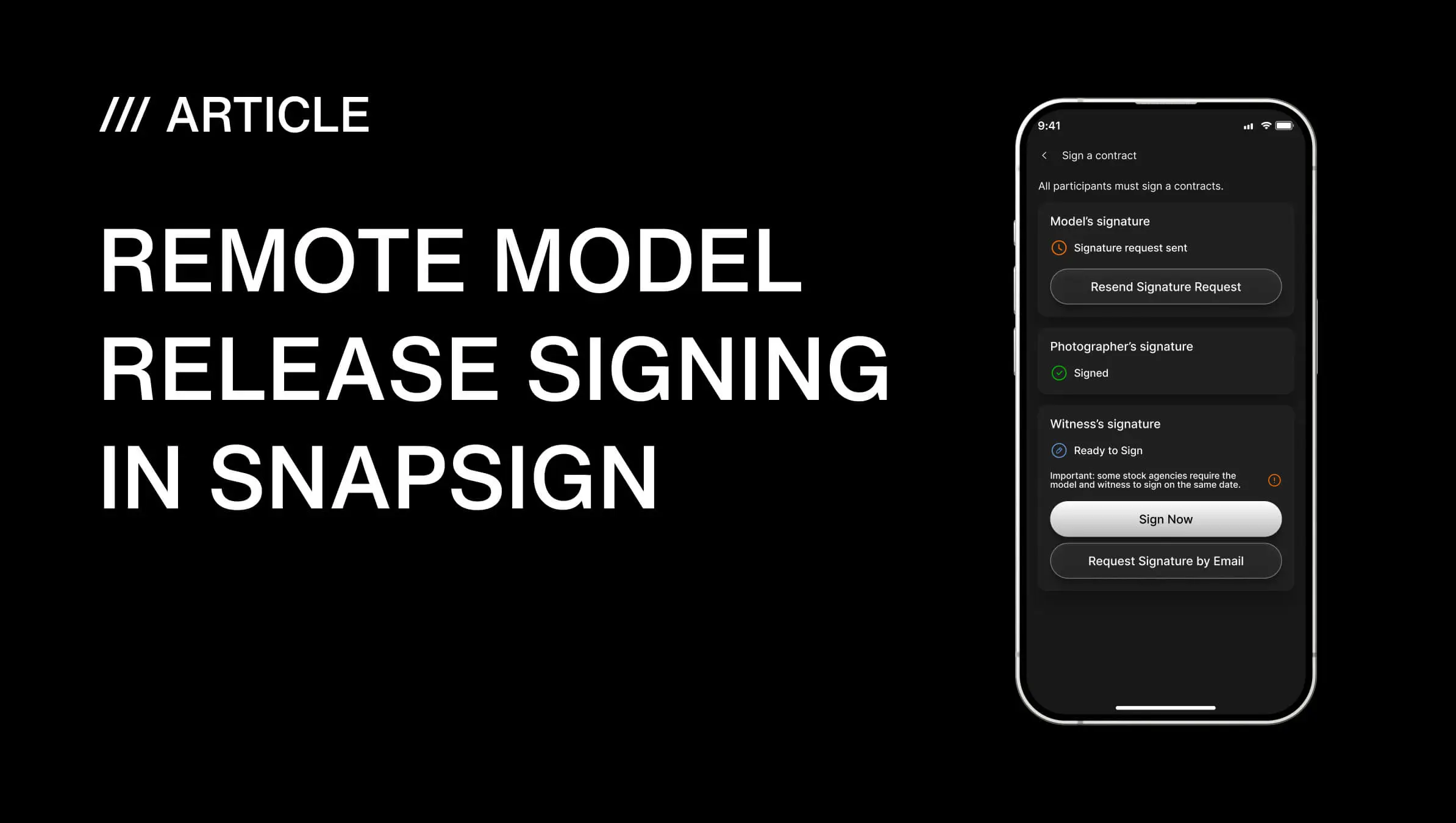
You can fill out an online model release form and get it signed remotely without printing, scanning, or asking anyone to install an app. SnapSign sends a secure tokenized link via email - the recipient opens it in any browser, fills in their details, signs on screen, and the completed release appears in your dashboard.
How to get a model release signed remotely: Open the app, pick a template, enter the recipient's email, and send. The recipient gets a private, tokenized link - no app install, no account creation. They fill in their details, sign on screen, and submit. The signed release syncs to your dashboard automatically with a timestamped audit trail. The link expires after 48 hours, and every contract is SHA-256 hashed for integrity verification. The whole signing flow takes under two minutes on the recipient's side.
Why Trust This Guide
We built SnapSign's remote signing flow after a shoot where the lead model flew home the same night, leaving the release unsigned — it took three weeks of email back-and-forth to close the paperwork out. Every step in this guide reflects the current app workflow, tested across iOS and Android. The comparison data on generic e-sign tools comes from their published pricing pages and feature documentation. — Pavel Demidovich, Film Photographer, Filmmaker, Founder of SnapSign
Digital Model Releases vs Paper: Why Online Signing Matters
A digital model release - sometimes called an electronic model release form - is the same legal document as a paper release, but signed electronically, stored in the cloud, and verifiable through cryptographic hashing. For photographers who submit to stock agencies, work with remote clients, or shoot events with multiple models, an online signing workflow eliminates the three biggest sources of release failure:
- Lost paperwork. Paper forms get damaged, lost in moves, or destroyed. A digital model release stored in the cloud survives a flooded studio, a lost phone, and a decade of equipment upgrades.
- Chasing signatures. With paper, the model signs on set or you chase them afterward. With online signing, the link goes out before they leave the parking lot - and the signed document appears in your dashboard without a follow-up email.
- Audit trails. Paper proves nothing about when a document was signed. A digital release with SHA-256 hashing and IP logging proves a specific person signed at a specific time on a specific device - the kind of chain of custody stock agencies and courts expect.
For photographers who shoot stock, deliver to agencies, or license work commercially, a digital model release - in effect, a digital consent form with a verifiable audit trail - is not a nice-to-have. It is the minimum documentation standard that platforms like Getty Images and Adobe Stock increasingly expect. See our stock platform release comparison for the specific requirements of each agency.
Online Model Release Signing vs Generic E-Signature Tools
You can use DocuSign, Adobe Sign, or HelloSign to collect signatures - but you cannot use them to produce a stock-compliant model release without significant manual work. If you are searching for a DocuSign alternative built specifically for model releases rather than general business paperwork, here is the difference between a purpose-built digital model release tool and a generic e-signature app:
| Capability | Generic e-sign (DocuSign, Adobe Sign) | SnapSign digital model release |
|---|---|---|
| Signature collection | ✅ Yes | ✅ Yes |
| Stock-compliant templates | ❌ You supply the legal text | ✅ Built-in - Adobe Stock, Getty, 2257, minor model |
| Model photo field | ❌ Manual attachment | ✅ Dedicated field on every template |
| Witness signature slot | ❌ You configure manually | ✅ Built into templates that require it |
| No signer account required | Varies - some tools require account creation | ✅ Browser-based, zero sign-up |
| Contract hashing / verification | Varies by platform | ✅ SHA-256 hashing + public integrity validator |
| Group release / batch signing | ❌ Manual per-document workflow | ✅ Group Events with roster tracking |
| Pricing for photographers | $10–$40/month per user (DocuSign starts at $10/mo for basic e-sign) | Free tier available; Premium for full features |
Generic e-signature tools are built for business contracts - NDAs, sales agreements, HR forms. They collect signatures but do not understand model releases. A photographer who sends a model release through DocuSign is responsible for getting the template wording, field structure, witness handling, and platform formatting right on their own - and if they miss a field, the stock agency rejects the submission. A dedicated digital model release tool builds those requirements into the template from the start.
One photographer on r/photography described stitching together Google Forms, an automation service called Portant, DocuSign, and Google Drive - four separate services - just to get one release signed and stored. Another pays $720 a year for Dropbox and still needs a separate e-sign add-on. A single tool that handles templates, signing, storage, and verification replaces the entire workflow. The American Society of Media Photographers (ASMP) recommends keeping digital copies of every release with clear audit trails - a requirement that paper releases and manual email workflows fundamentally cannot meet.
How Remote Model Release Signing Works in SnapSign
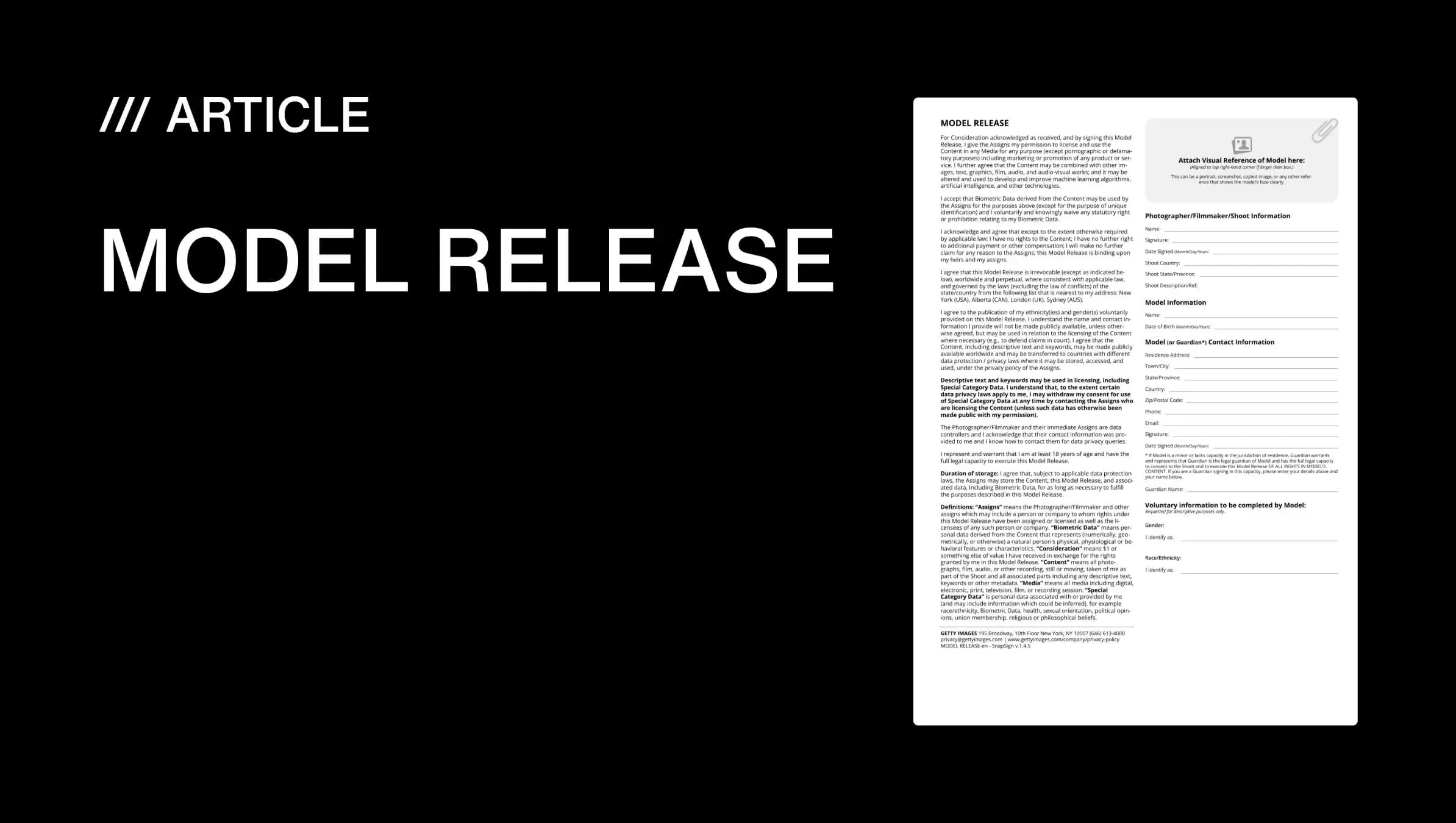
SnapSign replaces paper model releases with a digital signing flow available on iOS and Android. We include contract templates covering model releases, property releases, minor model releases, Getty Images-compliant releases, Adobe Stock releases, and 2257 compliance forms - so you start from a legally structured template rather than a blank page. For photographers new to the concept, a model release form is a legal document granting permission to use a person's likeness in images - a requirement for commercial photography and stock submissions.
For remote signing, SnapSign generates a private, tokenized URL tied to a specific release. The recipient clicks the link, reviews the contract fields, fills in their personal information, signs with a finger or mouse, and submits. The completed release - with embedded signature, timestamp, and contract hash - syncs to your account automatically. The recipient never sees your other releases, never creates an account, and never downloads an app.
| Method | Signer needs app? | Works remotely? | Audit trail? | Best for |
|---|---|---|---|---|
| Paper release | No | No | No | No alternative available |
| Email PDF + scan back | No | Yes | Weak | One-off situations |
| Generic e-sign (DocuSign, Adobe Sign) | May require account | Yes | Yes | General contracts, not stock-compliant |
| Tap-to-sign in app | No (uses your device) | No | Yes | On-set, in-person shoots |
| Remote signing link | No | Yes | Yes | Remote talent, pre-shoot prep, post-shoot catch-up |
Step 1: Pick a Template or Build a Custom Form
Every digital model release form in SnapSign starts the same way: open the app and tap "New Release." Choose from the built-in legal templates - model release, property release, minor model release, Getty Images release, Adobe Stock release, 2257 compliance form - or create a custom form if your agency or client has specific requirements. Custom templates let you adjust field ordering and wording where stock platform regulations allow.
Every template includes the fields stock agencies and clients expect:
- Full legal name as it appears on government-issued ID
- Signature and date fields
- Usage rights - editorial, commercial advertising, social media, or custom scopes
- Optional: photographer signature, witness line, shoot reference ID
The built-in templates are structured for Getty Images contributor requirements and Adobe Stock model release standards - two platforms with specific formatting expectations. Starting from a compliant template means fewer rejections during stock submission.
Step 2: Choose In-Person or Remote Signing
SnapSign gives you two signing methods - pick based on where the model is relative to you.
Option A: Tap-to-Sign on Set
When the model is physically present, hand them your phone or tablet. They sign with a finger or stylus directly in the app. The signed release saves to your account immediately. This is the fastest method - two taps and it's done, no paper trail to manage afterward.
Option B: Remote Signing Link
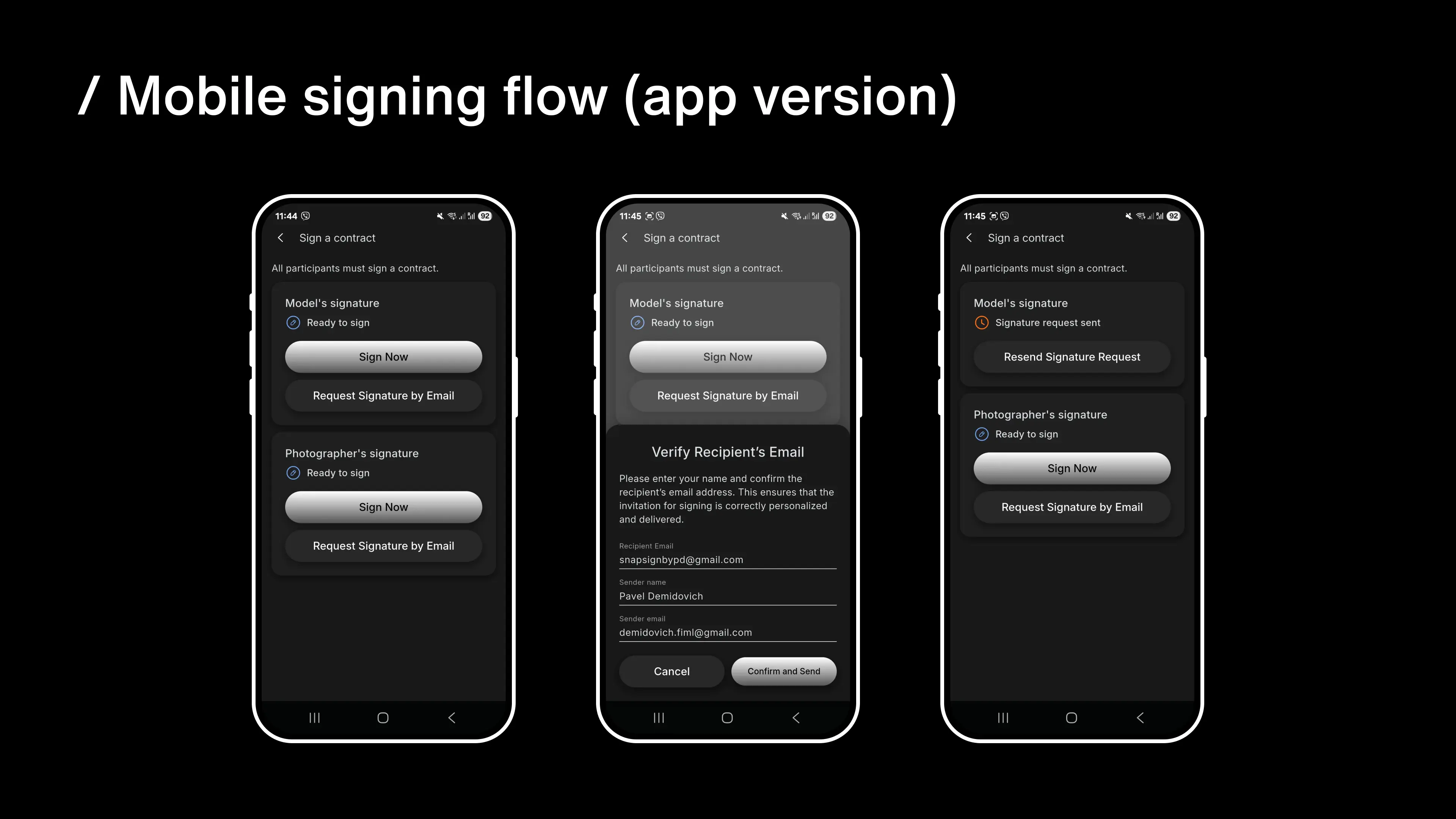
When the model is in another city, country, or time zone, send a remote signing link. Tap "Request signature by email," confirm the recipient's email address, and send. SnapSign generates a private URL with a 48-hour expiry. The link is tied to that specific release - no one can use it to access your other contracts.
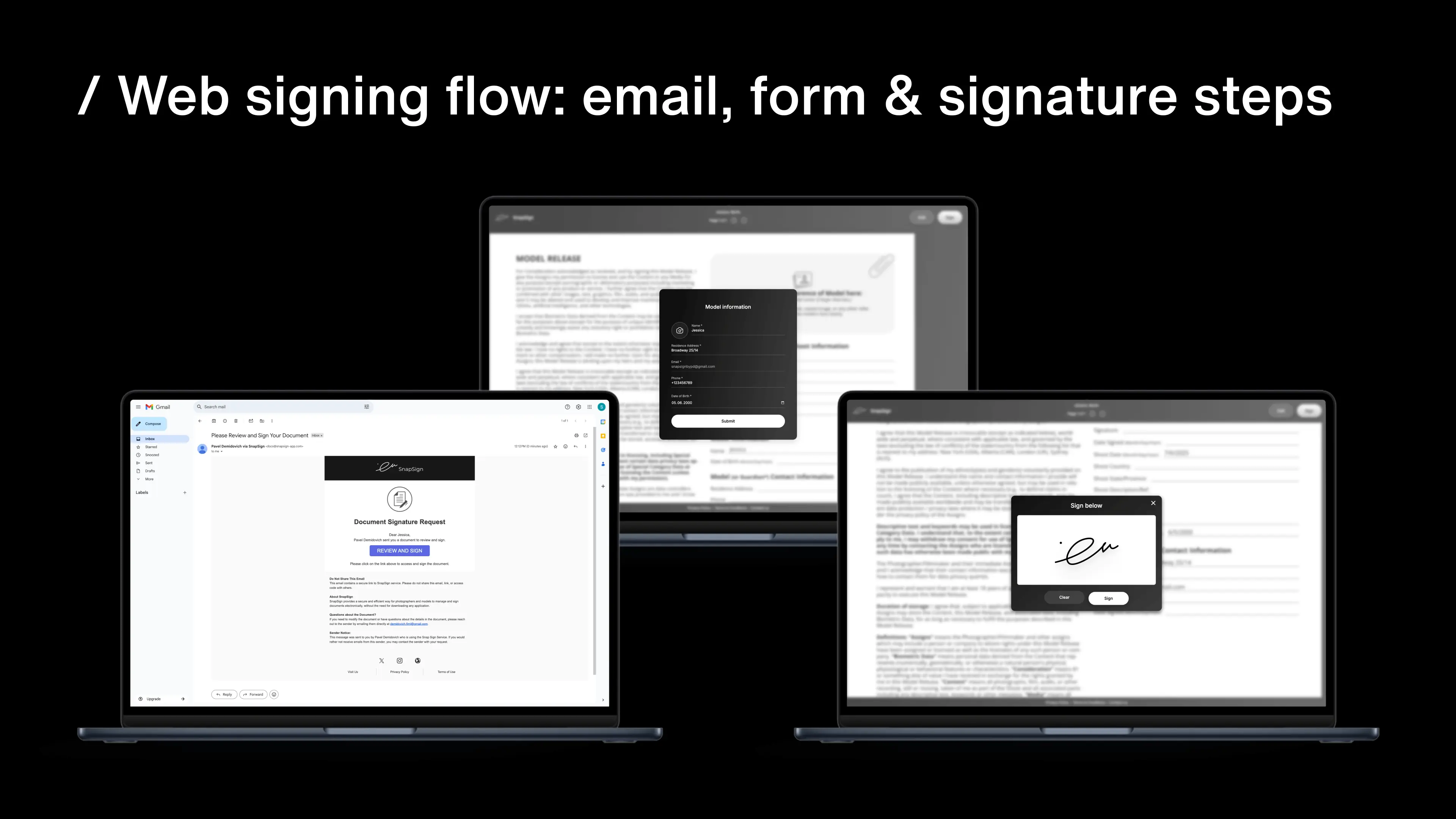
The recipient experience is straightforward: open email, tap the link, review the release in a browser, fill in required fields, sign, submit. The entire flow takes under two minutes. No app install, no account creation, no login. This matters when the model is between locations, on a tight schedule, or not comfortable installing new software - the barrier to signing is essentially zero.
Step 3: Enter the Recipient's Email
SnapSign prompts you to enter the model's email address before sending. Double-check it - a typo means the link goes to the wrong inbox. If you catch an error after sending, cancel the request and resend to the correct address. The original link is invalidated when you cancel.
Once the email is confirmed, tap Send. SnapSign delivers a professional email with the model's name, the shoot reference, and a clear call-to-action button to open the release. The email comes from SnapSign's domain - not your personal address - which adds a layer of professionalism for commercial shoots and agency work.
Step 4: The Recipient Opens the Signing Link
The recipient receives an email with a live link to the release. They open it in any browser on any device - iPhone, Android phone, iPad, Android tablet, Windows laptop, or Mac desktop. The signing interface is responsive: the form fields and signature pad resize to fit the screen.
No download required. No login. The link is the only thing they need. This is the key difference between a purpose-built model release app and generic e-signature tools like DocuSign or Adobe Sign - those tools can collect signatures, but they don't produce stock-agency-compliant model releases with the specific contract templates, model photo fields, and witness signature slots that platforms like Getty Images and Adobe Stock require.
Step 5: Fill In the Form Fields
When the release opens in the browser, the recipient sees a clean form with clearly marked required fields. They fill in:
- Full legal name (must match government-issued ID)
- Address, if required by the template
- Shoot name or project reference
- Optional fields: Instagram handle, talent agency code, alternate contact - depending on what you configured in the template
Required fields appear in bold, so the recipient can't accidentally skip them. The form validates on submission - incomplete required fields are highlighted before the release can be signed.
Step 6: Sign and Submit
The recipient signs with a finger on mobile or a mouse/trackpad on desktop. After signing, they tap "Submit" or "Finish Signing." SnapSign records the signature, timestamp, and IP address as part of the audit trail.
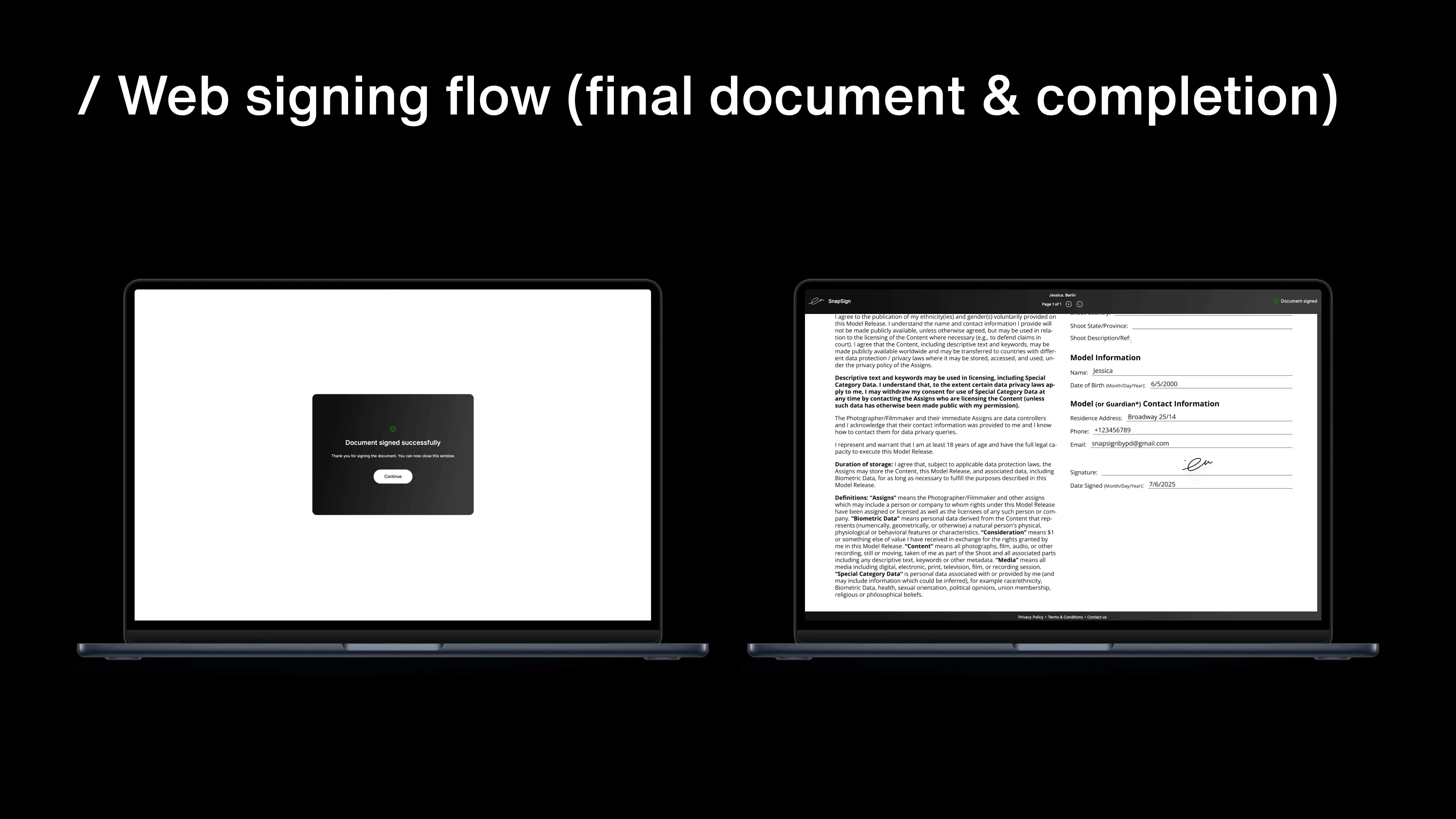
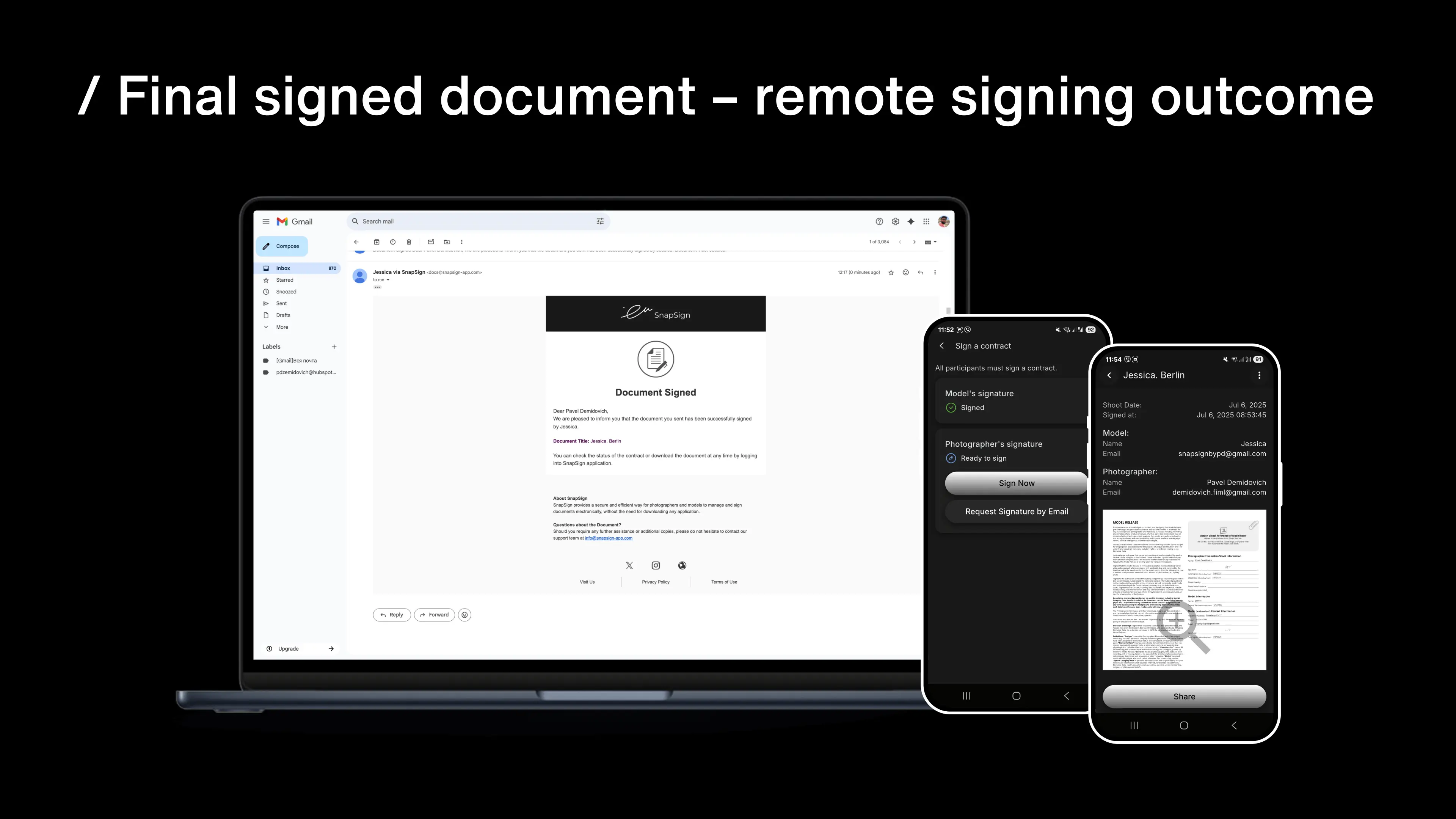
The signed release is now a completed legal document. No printing, no scanning, no emailing PDFs back and forth. It appears in your dashboard automatically - with the status marked "Signed" and the final PDF ready for download.
Every signed contract is cryptographically hashed using SHA-256, with the hash stored alongside the PDF. You can verify any signed release through the public contract integrity validator - upload the PDF or JPG and confirm it has not been modified since signing. This matters when a stock agency or client questions a release months after the shoot.
Step 7: Receive Confirmation and Download the Signed PDF
The moment the recipient submits, the release status flips to "Signed" and you get a notification - via email and inside the app. From the dashboard you can:
- Preview the completed document with embedded signatures
- Download the final PDF - timestamped, with all signatures and the contract hash
- Export as JPG for quick sharing with clients or agencies
- Organize releases by client, campaign, or shoot date using full-text search
The dashboard replaces the manual folder structure most photographers maintain in Google Drive or Dropbox. Full-text contract search lets you find a release by typing a name, location, or keyword - no scrolling through months of files. For photographers who accumulate hundreds of releases, this becomes a practical necessity.
Remote Signing for Group Shoots and Events
When you're shooting a fashion show with 30 models, a wedding with a bridal party and vendors, or a film set with cast and extras, sending individual release links one at a time is impractical. This question comes up on r/photography - event photographers need a way to collect releases from people they have never met before the shoot. The Group Events feature solves both problems: create an event, populate a roster of participants, and send the contract to everyone in one action. Each person receives their own tokenized link. You see real-time counters showing total invited and total signed.
Group Events also support shareable invite links with optional usage limits and expiry dates - participants can self-register by following a link or scanning a QR code. This is designed for workshops, casting calls, and convention shoots where you don't know every participant's email in advance. When the event is fully signed, SnapSign generates a ZIP archive containing every signed contract plus individual certificates for each participant. For agencies and production companies, the archive and certificates form a complete legal packet ready for compliance review or client handoff. Read the Group Events deep-dive for roster management and batch signing workflows, and the SnapSign vs Easy Release comparison for how group capabilities stack up.
Pro Tips for Reliable Remote Signing
- Name your releases clearly: use a format like "Release_Arjun_UrbanLookbook_Spring" - you'll find it in seconds when a client asks six months later.
- Add a short personal message when sending: "Thanks for today's shoot - here's the release link, takes about a minute to sign." It sets the right tone and increases response rates.
- Send the link before the shoot ends. People are most responsive immediately after a session. Waiting until the next day often means chasing.
- For recurring talent, save their information to Model Profiles - the data auto-fills future releases, eliminating re-typing across contracts.
- Export signed PDFs to your preferred cloud storage weekly as a secondary backup - client > campaign > model is a folder structure that scales.
Final verdict - Remote Releases
Remote model release signing with SnapSign removes the single biggest friction point in photography paperwork: getting a release signed after the model has left. The recipient opens a link in any browser, signs in under two minutes, and the completed document syncs to your dashboard with a cryptographic audit trail. No app installs, no printing, no scanning, no chasing. For photographers who submit to Getty Images or Adobe Stock, the contract hashing and public integrity validator provide verification that paper releases and generic e-sign tools cannot match.
Also available in: Español — Firma digital y derecho de imagen · Français — Signature électronique et droit à l'image